BLOG

3 ways to share photos with vendors

If you’re a photographer who often works with planners, florists, venues, stylists, or brands, sharing photos with vendors is part of the job. It’s also a great way to build relationships within the industry. But when multiple vendors ask for images from the same wedding or event, it can get overwhelming. That’s why it’s so important to use tools that help you stay organized and allow you to track what’s been shared and downloaded from the gallery.
In this article, you’ll find 3 ways to share photos with vendors using Pixieset galleries, without creating any new collections. These tips will help you keep galleries organized, protect client privacy, and maintain strong professional relationships with everyone you work with.

1. Separate links for each vendor (quick share links)
Quick share links in Pixieset let you send vendors exactly the images they need without giving access to the full client gallery. This is super useful when vendors reach out after the event or session. Instead of creating a new gallery from scratch or sharing the full collection of photos you took, you can quickly curate a selection and generate a unique link just for that vendor. For example, select all the photos of the floral details inside the gallery and share it with the florist, then select all the venue shots and send them to the venue team. Each vendor sees only what’s relevant to their work.
You can also allow or restrict download permissions for each link, track which links you’ve shared, and delete a link when it’s no longer needed. This keeps your workflow clean and your client’s privacy protected. Learn more about sharing photos with quick share links.
2. Folders
Folders are especially useful when your collaboration is planned in advance, like a commercial project, styled shoot, or wedding, and you know which vendors will need images. In Pixieset, you can create a folder for the event or photoshoot, include the main client gallery inside, and also create separate galleries for each vendor. Every collection can be customized with cover photos, fonts, colors, download permissions, and PINs, offering vendors a more tailored, elegant experience.
For larger projects with multiple vendors, you can save time by uploading galleries and vendor details in bulk. Here’s how:
- Before the photoshoot, fill out our CSV template to list all vendors, their respective gallery names, emails, and other details. Upload the CSV, and Pixieset will create and assign each gallery automatically to the right vendor.
- After the photoshoot, once you have all your photos edited, sorted, and ready to go, you can upload folders from your computer directly into Pixieset. Each folder automatically becomes a gallery with your preferred settings.
- From here, you can send all the galleries in bulk in just a few clicks. Set up and send one email, and each recipient will automatically receive a personalized invite to view their own gallery, along with details like a password and download PIN.
3. QR code at the event
If you’re photographing a large event with tens of vendors and want an easy way to collect everyone’s contact details, here is how to do it through QR codes in Pixieset Client Gallery:
- Before the event, pre-create a dedicated “For Vendors” gallery and turn on email registration.
- Generate a QR code for that gallery and print it or save it on your phone.
- At the event, vendors can scan the code and leave their email, and you can let them know you’ll be in touch once the photos are ready.
- Afterward, import the registered email addresses into Studio Manager to drop them a quick email that the gallery is ready, and keep the contacts for future communication.
This way, you won’t need to manually collect business cards or respond to requests about the photos through social media. We recommend keeping this gallery separate from the main client-facing collection so you can curate the images, limit downloads, and maintain client privacy while still offering a professional experience for everyone who scans the QR code. Learn more about sharing Pixieset galleries via QR codes.
Best practices for sharing photos with vendors
Sharing photos with vendors is a great way to strengthen connections and showcase your professionalism. Here are a few tips that help you keep your workflow organized, make sure that everyone gets the images they need, and that clients feel respected.
- Get client approval first. Always share the photos with your client before sending anything to vendors. If needed, confirm which photos are okay to share and which vendors can access them, and if possible, discuss this before the event. Vendors often post images on social media, so you don’t want your client to be blindsided. For weddings, clients usually won’t mind since they chose the vendors (venue, florist, etc.). In commercial work, clients are generally familiar with the collaborators and the images that are being shared, so that should not be a problem, either.
- Clarify image credit expectations. Let vendors know how you’d like to be credited if they post your photos. This can be included in a contract or a simple note in the photo delivery email.
- Include usage guidelines. Outline what vendors can and can’t do with the images. For example, where they can post them, whether they can crop or edit, or use them for ads. If possible, include these guidelines in a contract.
- Encourage vendors to tag you on social media. Ask vendors to tag you and the client when posting your images, and tag them back. This is an easy way to build exposure for everyone.
- Watermark images when needed. If you’re worried about images being reused without credit, add a watermark. Here is how to apply watermarks to images in Pixieset.
- Keep vendor links separate from client-facing galleries. Avoid giving vendors access to the full gallery you’ve shared with the client. This respects client privacy and ensures vendors only see the images they need.

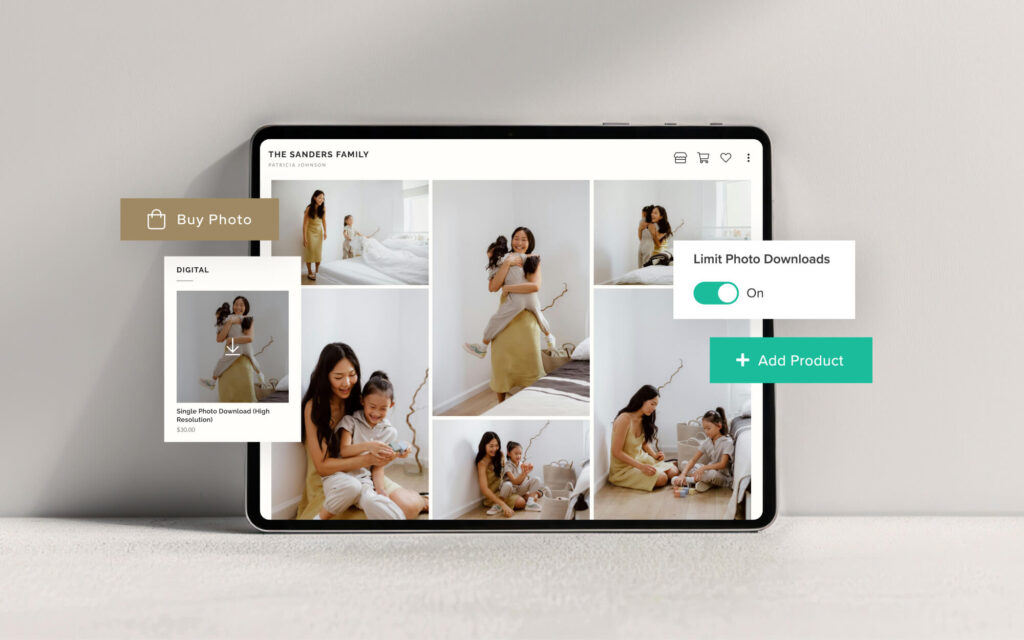
Pixieset photo galleries make it simple to share exactly the images each client or vendor needs, while keeping galleries beautiful, organized, and secure. From customization options to download controls and email registration, everything is designed to save time and help your delivery look professional. Here is a closer look at everything you can do with Pixieset Client Gallery.
Get started with Pixieset for free and explore all the features

 Studio Manager
 Client Gallery


 Store
Store