BLOG

NEW! AI-generated alt text and page descriptions for Pixieset Website

We’re excited to introduce powerful new tools for Pixieset Website, designed to make managing SEO settings easier, faster, and more effective. SEO can feel complex, but we’re here to simplify it and save you time. With our new AI-powered text generator, you can automatically add alt text to all your images and create page descriptions based on your content. We’ve also revamped the SEO Manager so you can easily review and adjust important site settings. Head to your dashboard to try the new features or keep reading to learn more.
Automatic image alt text with AI
Alt text is a brief description of an image on a website (e.g., "a bride and groom laughing while holding hands in a park"). It helps online screen readers describe images to people with visual impairments, making your website more accessible. It’s also used by search engines to “understand” your photos and place them in search results.
As a photographer, adding alt text to every image on your site can feel tedious and time-consuming, especially if you have hundreds of photos. Our new AI-powered text generator will add alt text to your images in seconds. Choose to generate descriptions for individual images or toggle ON the option to have alt text added automatically to all your current photos and the future ones you’ll upload.
Save time, focus on creative work, and feel confident knowing that this detail is handled for you. Learn how to generate alt text for your site.
Generate page descriptions in seconds
Page descriptions are short summaries of a page’s content, which play a key role in SEO. Search engines display them in search results, right below the page title and URL. A well-crafted description can make a big difference for your site’s online performance. It can persuade viewers to click through, explore your site, and discover your photography services.
Our new AI-powered text generator will help you write these descriptions faster, by offering suggestions based on your page’s content and business details. You can click on “generate” multiple times, to find the perfect fit, or manually make edits.
To get started, first you’ll need to fill out your AI profile. Describe your brand, list your services, and include relevant keywords that clients are likely to search for (e.g., "fine-art wedding photography San Francisco"). Then, go to the Pages tab in your SEO Manager and start generating descriptions.
A simpler way to manage SEO settings
Pixieset Website comes with a built-in SEO Manager to make optimizing your site settings simple. We’ve revamped it, so it acts like your own personal checklist, helping you identify areas that require attention and giving you direct access to make updates. You can quickly spot missing titles or descriptions, fix broken URLs, and ensure your site is ready for search engine indexing. Learn how to use the SEO Manager in Pixieset Website.
Getting started with SEO on Pixieset Website
Head to your website dashboard > Settings > SEO Manager to try these new features. AI alt text and page description generation is available on select upgraded website plans.
Since SEO requires time and consistency, we recommend to start with the basics, then slowly move into the world of keywords strategy, blogging, backlinks, and more. Check this tutorial to learn everything you need to know about managing SEO on Pixieset. And follow these 10 SEO tips for photographers to improve your site’s performance in search results.
Coming soon! Eight new website templates for photographers
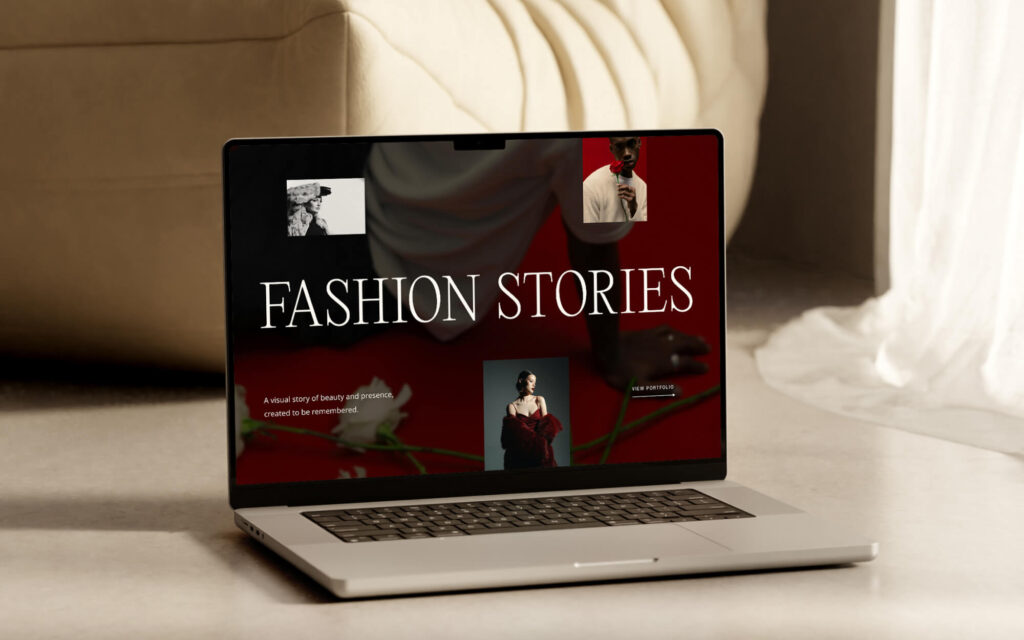
Ready to build a beautiful new website for your photography business? We’re releasing soon 8 stunning new templates, fully powered by Flex Editor, to offer you maximum control over your site. Stay tuned!

 Website
 Client Gallery