BLOG

What’s new in Client Gallery | August 2025

At Pixieset, we value simplicity over complicated tools, and we firmly believe it’s the little things that often make the biggest difference. Whether you’re creating galleries, building a website, or managing documents — small, thoughtful updates can turn everyday tasks from overwhelming to enjoyable.
That’s why we put as much care into refining your day-to-day experience on Pixieset as we do into building a big, game-changing feature. Here are a few subtle updates to Client Gallery that we think you’ll love, and will want to try right away.
#1. Add descriptions to photo sets
You asked for a way to bring more storytelling into your gallery delivery process, and we heard you. You can now add descriptions to any photo set inside a collection. This could be a quote from your clients’ vows, lyrics from a song they loved during the session, or a few kind words about the photoshoot and the moments you captured.
To add a description, in your dashboard, click on the “…” next to a photo set, then select “Edit set”.
#2. Select a thumbnail directly from the video
When delivering videos through Pixieset, you can now select a custom thumbnail directly from the uploaded video. A small change, but one that saves you the time of designing and uploading a separate thumbnail.
#3. Display collections as a list
While we love the immersive grid view in the dashboard — we heard your request for a quicker way to scan through multiple collections at once. Now you can choose to display your collections as a list, or keep the original grid layout. Your choice.
#4. Hide the menu to bring things in focus
Prefer a wider view while working on your Pixieset galleries? You now have the option to collapse the left-side menu in your dashboard and focus fully on your collections and photos.
#5. Manage photos and videos quicker with keyboard shortcuts
To make organizing your galleries even faster and more intuitive, you can now use keyboard shortcuts:
- Command/CTRL + C: Copy a selection of photos or videos to another set in the same collection or to a different one.
- Command/CTRL + X: Move a selection of photos or videos to another set in the same collection or to a different one.
- Command/CTRL + ↑: Move a selection of photos or videos to the top of your photo grid.
- Command/CTRL + ↓: Move a selection of photos or videos to the bottom of your photo grid.
- Command/CTRL + A: Select all the photos or videos inside your collection. Note, you need to have at least one photo/video selected, and then use Command + A to select the rest of the photos/videos in your grid.
- Spacebar: View selected photos or videos one by one in a larger preview.
- Esc: Remove the selection from photos or videos.
- Delete/Backspace: Initiate the deletion of selected images or videos.
#6. Enhanced collection expiry options
With Pixieset you have the option to set an auto expiry date for any gallery to automatically hide it after a chosen date. The limited timeframe encourages clients to take action: view, download, and purchase their photos, before the gallery expires.
To help you manage expiring galleries more effectively, we’ve introduced two helpful new features:
- You’ll now receive a notification when a gallery is about to expire — giving you time to follow up with your client, encourage them to save or buy their photos. You can also opt to extend the expiry date if needed.
- We’ve also expanded the list of contacts you can include on the mailing list for an expiring gallery. When setting up your gallery expiry reminder email, you can now also send it to people assigned as Collection Contacts, additional to visitors who registered to view the gallery, those who created Favorites lists, anyone who downloaded or purchased images.
Set gallery expiry reminders and ensure your clients, and anyone they've shared the gallery with, don’t miss their chance to download their favorites or purchase prints.
#7. More ways for clients to share their gallery and photos
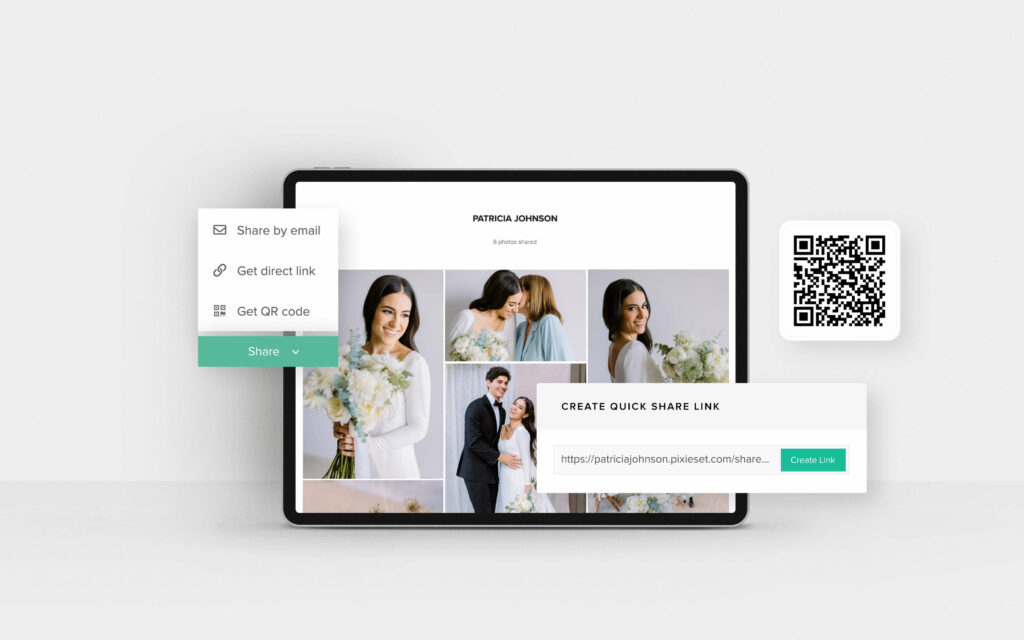
It’s now easier than ever for clients to share their gallery with family and friends across social platforms. We’ve updated the social sharing options inside the gallery, so clients can easily share their photos via Messenger, WhatsApp, Threads, Instagram, Facebook, Pinterest, email, and more.
The new sharing options are accessible on any device — making it simple for clients to share their memories, and get more eyes on your beautiful work.
#8. Other exciting updates
But wait — there’s more! Our team has been hard at work bringing you a mix of small, subtle improvements that make your workflow smoother, your galleries more intuitive, and your clients’ experience even better.
- Drag and drop photos between sets — rearranging photos inside a collection is now faster and easier. Just select the photos and drop them into the relevant set.
- Easier photo rearranging inside the grid — you can now scroll up and down while dragging a selection of photos into a new spot, making it easier to organize larger galleries.
- Quick access to Favorites for clients — When clients favorite or unfavorite a photo, they can now click on the small pop-up notification in their gallery to instantly open their Favorites list.
- Improved sorting in Favorites — clients’ Favorites lists now show photos in the order they were originally captured, making the viewing experience feel more natural and story-driven.
- No need to re-enter emails in the gallery — once a client enters their email to view, favorite, or download photos, they won’t need to enter it again during that session.
- “Downloaded” icon on photos — when a Download Limit is set for a gallery, clients will see an icon appear on each photo they download. This helps avoid duplicates and keep track of saved images.
- Styling enhancements for the video player — we’ve refined the video player inside your galleries to provide a cleaner, more elegant viewing experience for your clients.
- Video filenames visible in dashboard — if you’ve turned on filenames in your gallery settings, you’ll now see filenames for both photos and uploaded or embedded videos, directly in your dashboard.
- Better experience on iPad and tablets — we’ve made subtle UI improvements to make working from your iPad or tablet feel more seamless.

Ready to try all the new features and updates? Head over to your dashboard, open Client Gallery, and give them a try! We can’t wait to hear your feedback on them.

 Client Gallery

 Store
Store 
 Website